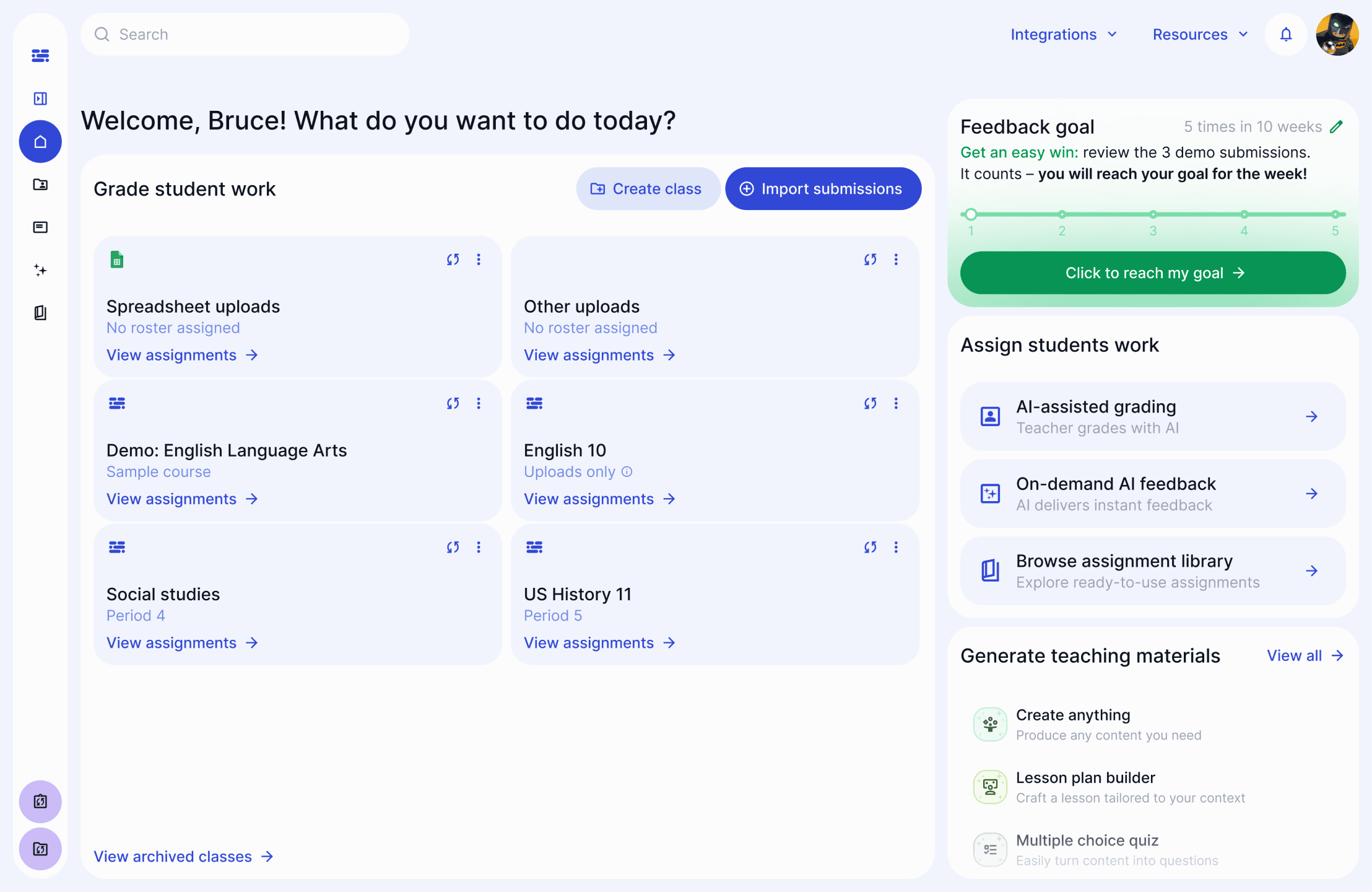

If you’re new to EnlightenAI and you are using Canvas as the place where you assign work and gather student responses, here’s how you can integrate that student work into EnlightenAI for immediate AI grading and feedback:
Download submissions from an assignment in Canvas and bring the html contents of the directly into EnlightenAI.
Create an assignment and import: Build an assignment in EnlightenAI, and then you can choose to import student work.
Automatically match students: EnlightenAI uses file names from Canvas to match student submissions, reducing manual work.
Do drag-and-drop corrections: If a student isn’t matched automatically, simply drag their submission to the right roster spot.
Get started Grading: Once uploaded, you can quickly set up a rubric, enter task details, and start grading efficiently.
This integration makes it easier for teachers to focus on feedback and save time in the grading process. Check out the video below to see a quick 2-minute tutorial:

Want more videos like this one? Check out our youtube site!
One last thing…
If your school or district partners with EnlightenAI, we can build out a full integration with Canvas so that all the heavy lifting is done for you, and student work can be automatically imported and exported. Your rosters, assignments, and submissions will sync automatically once you sign in. If you want to learn more, reach out to us and we can chat!
The step between Canvas submission and AI grading used to require a manual export, downloading files, uploading them again, waiting. The Canvas integration removes that step entirely. Submissions land in EnlightenAI automatically, and teachers go straight to reviewing feedback instead of managing files. Removing friction from the workflow means feedback arrives faster, every time.
Connect your assignments today, try the AI grading tool.
EnlightenAI helps teachers deliver instant, rubric-aligned AI writing feedback so students can practice, revise, and improve faster. It's a simple way to start grading essays more efficiently.