Key takeaways
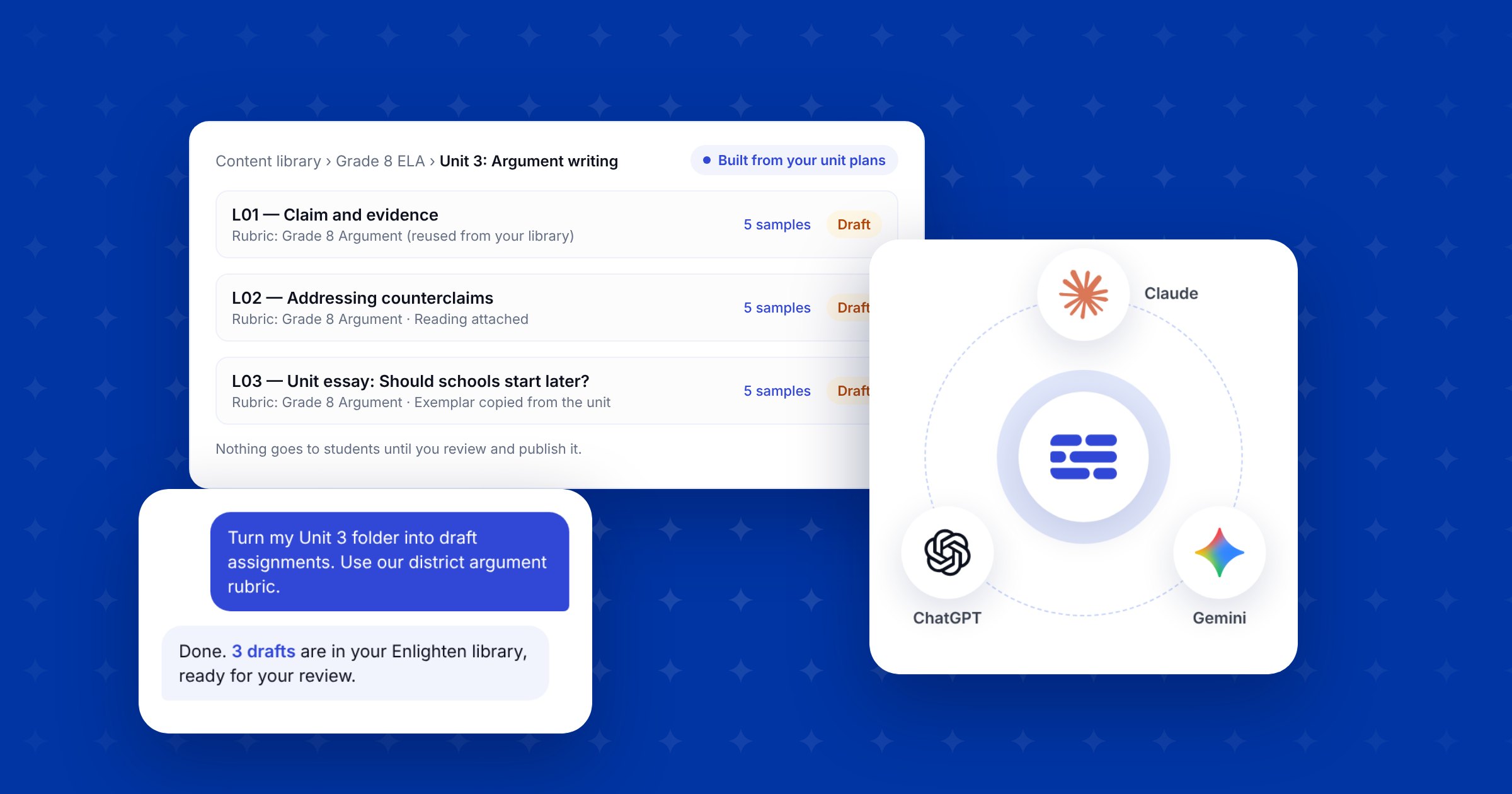
School and district admins can now connect Enlighten to Claude, ChatGPT or Gemini with one connector address.
Point your assistant at a folder of unit plans, prompts and rubrics, and it builds draft assignments, rubrics and readings in your admin library.
Nothing goes live until you review and publish it in Enlighten.
The connector only sees your content library, never student work or grades.
Intro
A district curriculum team that wants every 8th grade ELA classroom using the same writing tasks used to face a long week: open each unit plan, copy the prompt, attach the reading, pick or build the rubric, and set up the TA, one assignment at a time.
Now that work can start in the AI assistant your team already uses. Connect Enlighten to Claude, ChatGPT or Gemini, hand the assistant your unit folder, and it builds the drafts in your Enlighten library, organized the way you already file things. Your team reviews each draft and publishes it when it's ready.
What the Enlighten connector does
The connector is a custom connector (assistants call these MCP connectors) that lets Claude, ChatGPT or Gemini work directly in your Enlighten admin library. Once it's connected, the assistant can:
Read your existing content areas, grades, units, rubrics and readings, so new drafts land in the right place and reuse what you already have.
Build draft assignments with the student prompt and exemplar copied word for word from your source documents.
Match each task to a rubric in your library, including the state test and AP writing rubrics Enlighten ships with, or build a new one when nothing fits, and show you the match criterion by criterion.
Attach the readings the TA needs to grade, and write five scored sample responses from high to low so the AI grading assistant is calibrated before students ever submit.
Everything it creates is a draft. The connector can't publish, archive or delete anything.
Who can use it
The connector is for school and district administrators on an Enlighten school or district partnership: curriculum leads, instructional coaches with admin access, and the people who manage your shared assignment library. Teacher accounts can't use it; drafts built by admins show up in the library for teachers to use once they're published.
Connector access is turned on per organization. If you're an admin and don't see it working yet, book a quick setup call and we'll switch it on with you.
What you need before you start
An Enlighten partner administrator account, in an organization with connector access enabled.
An AI account that allows custom MCP connectors. Which plans allow this, and whether a workspace owner has to add the connector first, depends on your provider; see Anthropic's guide to custom connectors, OpenAI's guide to custom MCP servers in ChatGPT and Google's Gemini custom apps requirements.
The connector address:
https://app.enlightenme.ai/content-mcp. Include/content-mcp, not just the homepage address.
How to add the Enlighten connector to Claude
These steps work in Claude on the web and in the Claude desktop app, which uses the same connector. Menu names can vary slightly between versions.
Open Customize → Connectors (on older versions, Settings → Connectors).
Choose Add custom connector.
Name it Enlighten and paste
https://app.enlightenme.ai/content-mcp.If you're asked how to authenticate, choose OAuth and, if offered, Register automatically. No API key or client secret is needed.
Click Connect, sign in to Enlighten in the browser window that opens, and approve the access request.
In a new conversation, turn Enlighten on from the + menu.
In a Claude Team or Enterprise workspace, an owner may need to add the connector for the organization first; each person then connects their own Enlighten account. Using Claude Code? Run claude mcp add --transport http enlighten https://app.enlightenme.ai/content-mcp, then /mcp to sign in (Claude Code's MCP docs).
How to add the Enlighten connector to ChatGPT
ChatGPT offers custom connectors in two places, depending on your plan and workspace settings.
If you see Plugins:
Open Plugins, click +, then Add custom MCP server.
Name it Enlighten and enter
https://app.enlightenme.ai/content-mcp.Choose OAuth and create the connector.
Connect your Enlighten account, then select Enlighten in your chat.
If you see Apps and Developer mode:
Go to Settings → Apps (or Apps & Connectors) and turn on Developer mode under Advanced settings.
Create an app with the name Enlighten, the connector address, and OAuth.
Connect your Enlighten account and select the app in a conversation.
The assistant needs full access, not search-only access, to create drafts. If your workspace limits custom connectors, your ChatGPT admin may need to allow it. Codex works too: add the address as a Streamable HTTP server and authenticate (Codex MCP docs).
How to add the Enlighten connector to Gemini
In the Gemini web app, custom connectors are called custom apps:
Go to gemini.google.com, open Settings, then Connected Apps.
Under Custom apps, click Add a custom app.
Enter
https://app.enlightenme.ai/content-mcpand click Next.Sign in to Enlighten in the browser window that opens and approve the access request.
One limit to know: Google currently offers custom apps only to personal Google accounts in the US, not to work or school Google accounts, and only with Keep Activity turned on (Google's help page on custom apps in Gemini). If your district runs Gemini Enterprise, an admin can add the connector as a custom MCP server for your organization instead (see Google's Gemini Enterprise documentation). Gemini also asks you to confirm each change before it's made.
From a folder of unit plans to draft assignments
Once you're connected, the assistant follows the same steps a careful curriculum lead would, and checks with you at each decision:
Upload your files. The assistant gives you an Enlighten upload link for your unit plans, prompts and rubrics. Attaching a file to the chat doesn't send it to Enlighten, and Enlighten doesn't download shared links, so use the upload link.
Agree on the scope. It proposes which tasks to build and which to skip, such as multiple-choice or annotation-only lessons, and you confirm.
Agree on where drafts go. You choose the content area, grade and unit, matched to how your library is already organized. It never creates a new folder without your OK.
Approve the rubric map. For each task it reuses a rubric from your library, with the evidence for the match, or proposes a new one built the way we recommend in how to make a rubric. Duplicate rubrics get combined into one shared rubric; rubric families, like different grade bands, stay separate.
Review one pilot. It builds one complete assignment first, with the prompt and exemplar copied word for word and five scored samples, and Enlighten's TA grades the samples back so you can see how it scores.
Build the rest in small batches. After you approve the pilot, it builds three to five drafts at a time. Anything missing from your sources is marked PENDING rather than made up.
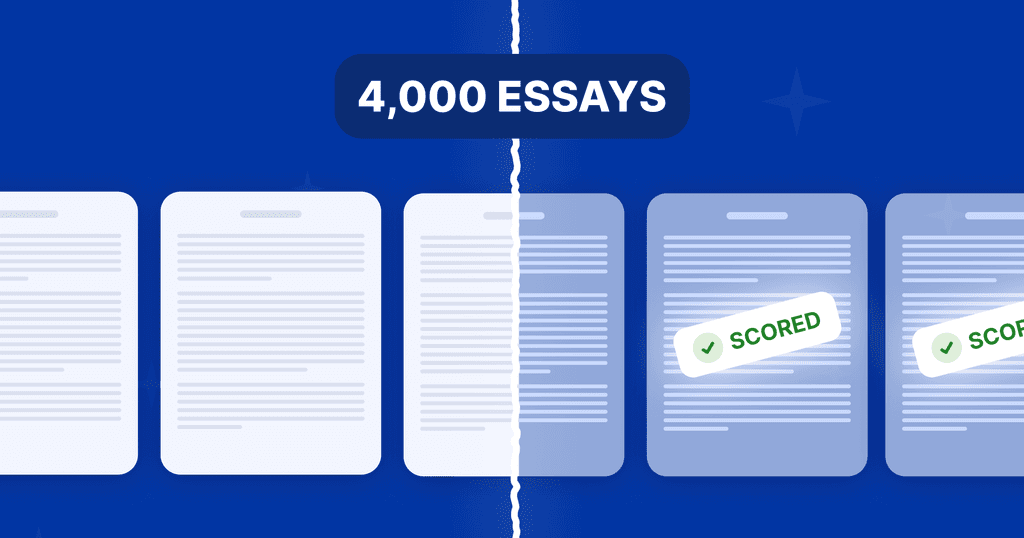
For what calibrated scoring looks like across a whole district, read how Owensboro Public Schools scored 4,000 student essays in two weeks.
You stay in control
Every assignment the assistant builds is a draft in your admin library. Your team opens it in Enlighten, checks the prompt, rubric, readings and samples, edits anything that needs it, and publishes it when it's ready. The assistant can't publish, archive or delete.
To stop using the connector, remove it from your assistant's connector settings and book a call with our team to revoke access on the Enlighten side.
What the assistant can and can't see
The connector works only with organization-level content: your content library, rubrics and readings. It never sees student work, grades, usage analytics, or student and teacher directories.
You sign in to Enlighten in your browser, never in the chat, and the consent screen shows exactly which organizations and permissions you're granting.
Reading your library and writing drafts are separate permissions, and drafts can only be written where an admin has turned connector access on.
Your AI provider processes the content the assistant reads, so follow your organization's policies on which assistants and content you use.
The rest of Enlighten, where students write and teachers grade, is unchanged: iKeepSafe certified for FERPA, COPPA and California student privacy, and we don't train models on your students' work.
Prompts to try first
Start with a read-only check, then build one pilot:
“Show which Enlighten organizations I can administer. Do not create or change anything.”
“List the content areas, grades and units in my library, and the rubrics we already have for grade 8 ELA.”
“Find a rubric in my library that fits this argumentative writing task, and show me the evidence criterion by criterion.”
“Give me an upload link. I'll add our Unit 3 plans; then propose a scope, placement and rubric map, and build one pilot draft for my review.”
“Pick up where we left off on Unit 3 and show me what's still PENDING.”
FAQs: the Enlighten connector
Connectors let Claude work with other apps and services. Custom connectors use the open Model Context Protocol (MCP), so an organization like Enlighten can offer one that you add with a single address. ChatGPT and Gemini support custom MCP connectors too. See Anthropic's guide to custom connectors.
In Claude, open Customize → Connectors, choose Add custom connector, and paste https://app.enlightenme.ai/content-mcp. Choose OAuth if asked, connect, and sign in to Enlighten. The full steps are above.
Yes. Add it as a custom MCP server under Plugins, or as an app with Developer mode, depending on what your ChatGPT workspace shows. It needs full access, not search-only access, to create drafts.
Yes, through Gemini's custom apps: Settings → Connected Apps → Add a custom app, then enter the connector address. Google currently limits custom apps to personal Google accounts in the US, so school Google accounts can't add them yet; Gemini Enterprise organizations can add the connector as a custom MCP server instead. Using another assistant? Book a setup call and we'll check it with you.
Not directly. It's for school and district administrators on an Enlighten partnership. Teachers use the assignments once an admin publishes them.
No. The connector only works with your content library, rubrics and readings. It never sees student submissions, grades, usage analytics, or student and teacher directories.
No. Everything it builds is a draft. Your team reviews and publishes in Enlighten, and the connector can't publish, archive or delete.
No. Download the files and add them through the upload link the assistant gives you. Attaching a file to the chat doesn't send it to Enlighten.
Get help setting it up
Our connector setup guide has every step, including troubleshooting for common errors like "Organization admins only" or reads that work while writes fail. Or book a 30-minute setup call and we'll connect it with you and build your first unit together.